View Your Deposits

Items that have already been deposited to your account can be viewed from the My Deposits tab. Here, you can filter your list of deposited items and view an image of each item. You can also see the current status of each deposited item as it is processed through the system. If an item has been rejected for any reason, you can view the reject reason from this screen.
View Deposited ItemsView Deposited Items
- Click the My Deposits tab. A list of your previously deposited items appears organized by date.
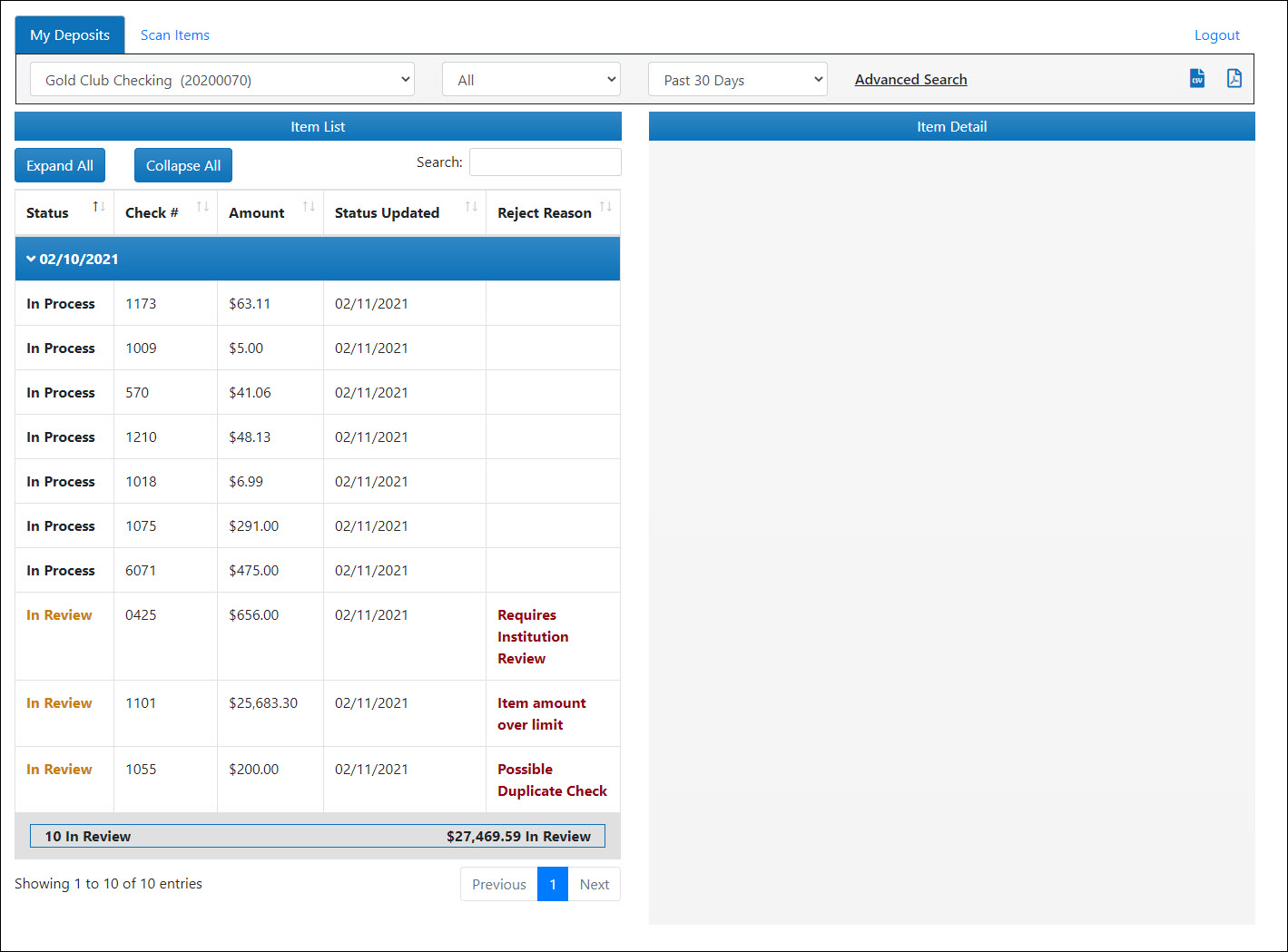
- To change the account for which you are viewing deposits, from the [Account Name] drop-down list at the top of the screen, select the desired account.
- By default, deposited items for the last 30 days are shown on this screen. To change the period of time for which deposited items are shown, from the Past 30 Days drop-down list, select a new time period.
To filter deposited items by status, from the All drop-down list, select an item status.
Hide Deposited Item Status DescriptionsShow Deposited Item Status Descriptions
- Posted – The item was successfully submitted to your financial institution and funds should be available shortly.
- In Review – The item is currently being reviewed by your institution.
- In Process – The item is currently being processed by your institution.
- Rejected – The item was rejected by your financial institution and will not be posted.
- Advanced searches allow you to further refine your search by a specific date range, check number or range of check numbers, and minimum/maximum check amount.
To perform an advanced search, click Advanced Search. In the new fields that appear, enter information to further refine your search.
To cancel an advanced search and return to the normal search filter options, click Cancel.
You can also filter the item list by date posted, item status, check number, check amount, status updated (date), reject reason, routing number, or account number at any time by entering the desired information into the Search box. - To see an image of a deposited item, click on that deposited item. The item is shown in the Item Detail window.
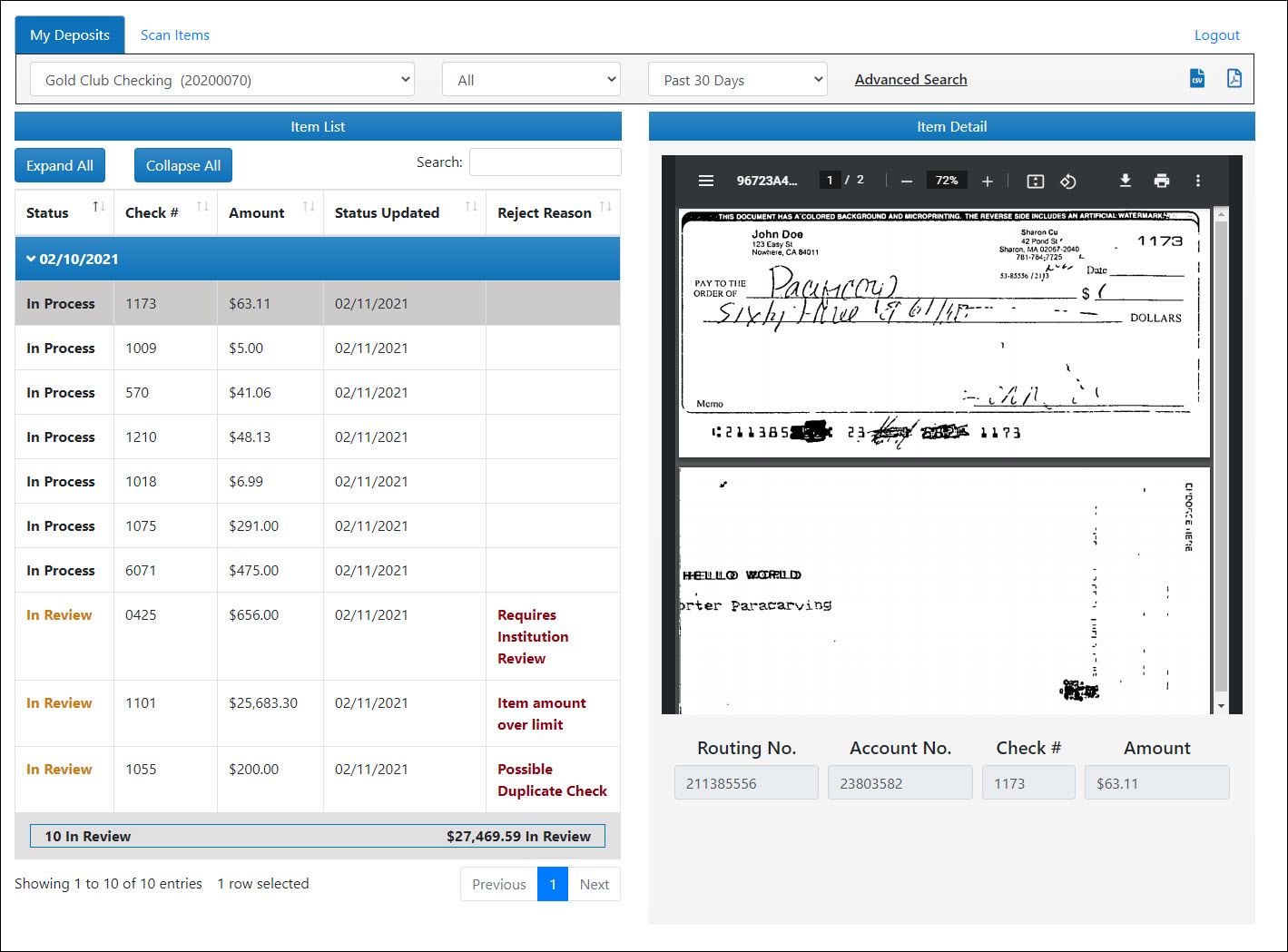
At the top of the window, an additional set of icons appears. You can use these icons to zoom in or out
  on the item, fit the item to the page
  , rotate the item counterclockwise
  , download a copy of the item
  , or print the item
  .
.
- To expand or collapse a list of deposited items for a specific date, click on the corresponding column header.
To expand or collapse a list of deposited items for all dates, at the top of the screen, click Expand All or Collapse All. - To sort the item list by status, check number, amount, status updated (date), or reject reason in descending order, click the corresponding column header.
To sort the item list in ascending order, click the corresponding column header twice. - To export the item list in CSV or PDF format, click the CSV
 or PDF
  icon. The item list is exported in the selected format and saved to the default Downloads folder on your computer.
 - For more information on what a specific reject reason means, click here.