The Signer's Experience

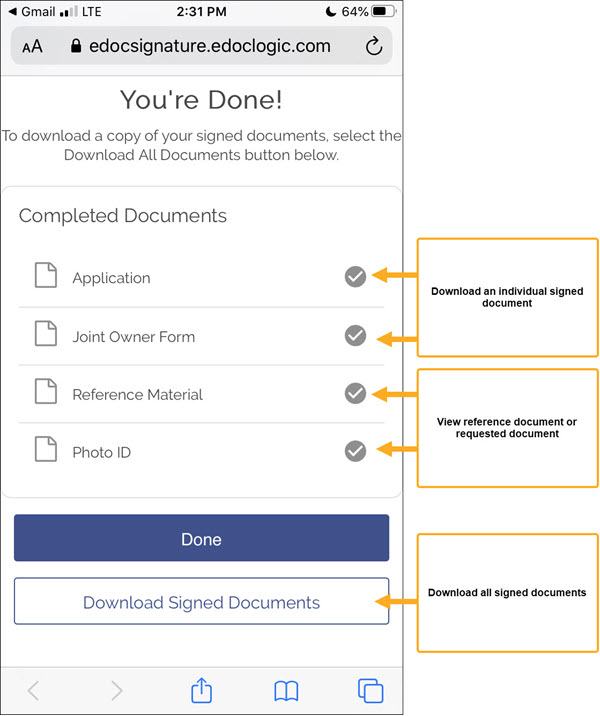
This topic outlines the signer's experience when using eDOCSignature to view or sign documents. Once a signer has completed the signing process, they can download any of the documents individually OR download all documents as a single .pdf file.
Whether documents are being signed remotely or in person, the signer's experience remains the same.
View the Signer's ExperienceView the Signer's Experience
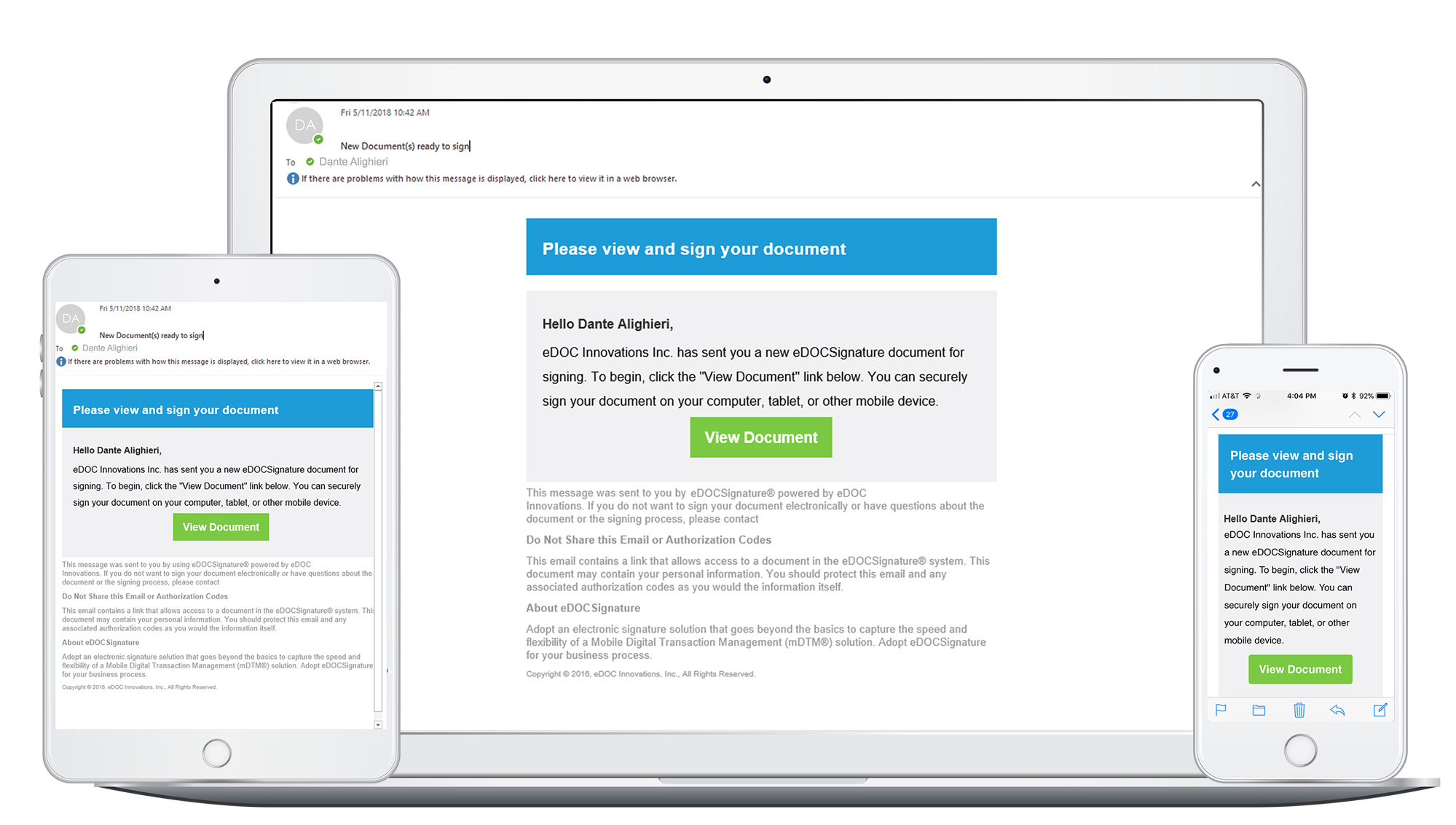
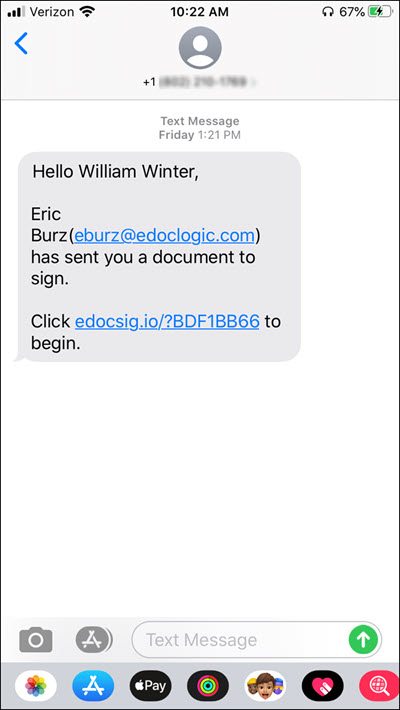
- After a package has been sent out for an electronic signature, signers receive an email or text notification from eDOCSignature. The signer opens and sign their documents using a smart phone, tablet or, computer by clicking on the View Document button or text message hyperlink.
- If an ID Check is required, the signer is brought to the appropriate ID Check screen and asked to verify their identity before moving on.
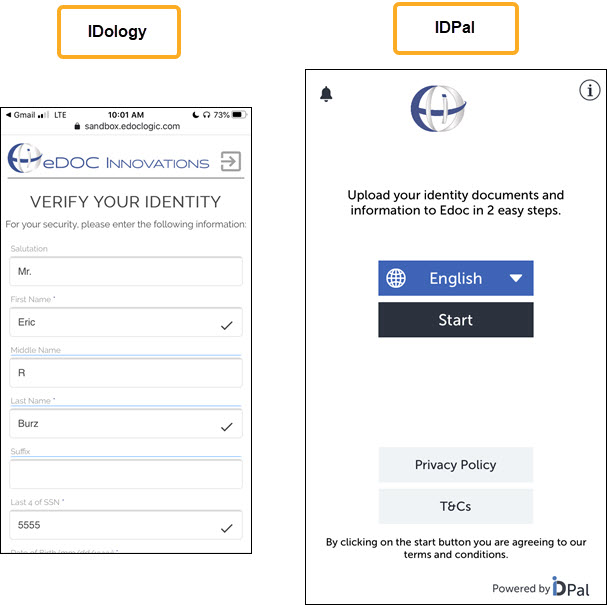
View ID Check DescriptionView ID Check DescriptionID Check allows you to verify a signer's identity before the document signing process occurs using one of the methods described below. Access to each ID Check method is subscription-based and must be enabled by a member of the eDOC Client Development team.
IDology is an out-of-wallet service that screens signers using their personal information and a series of personalized questions. The service scours billions of public data records to intelligently derive tactful, non-invasive quesitons to authenticate an identity.
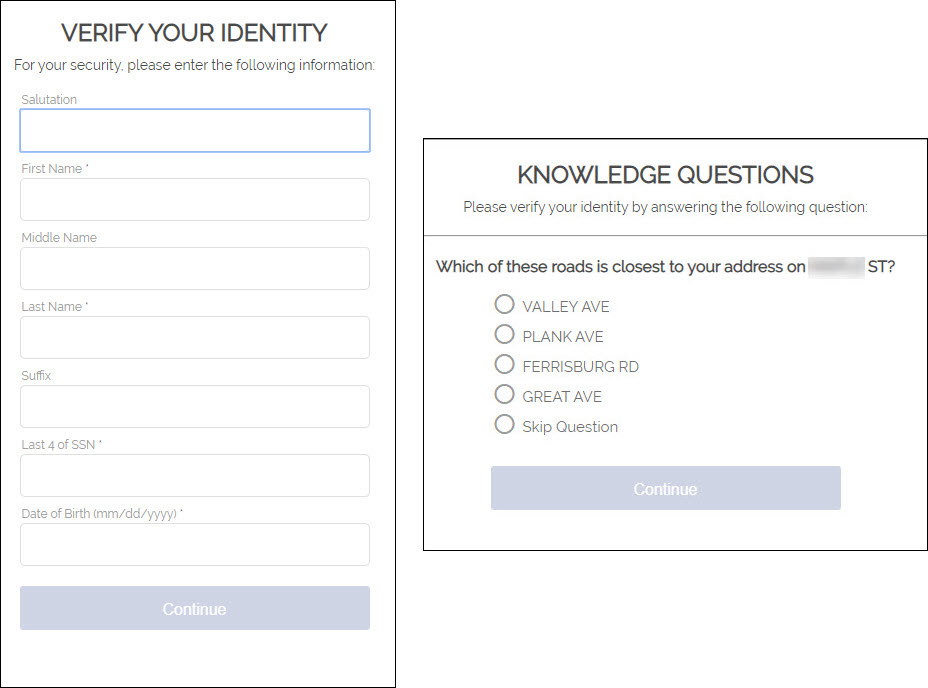
For each question, the signer has the option to choose "None of the Above" or "Skip the Question." Based on the number of questions answered correctly, your business can approve or deny the transaction. Once IDology confirms the signer's identity, they proceed to complete the signing process.IDPal verifies a signer's identity by matching the information on their passport or driver's license with public data records. It also performs a "likeness test" using the signer's passport or driver's license photo and a current photo. Signers are sent a link to download the ID-Pal application on their mobile device. Once downloaded, signers use the application to upload a copy of their passport or driver's license as well as a current photo.
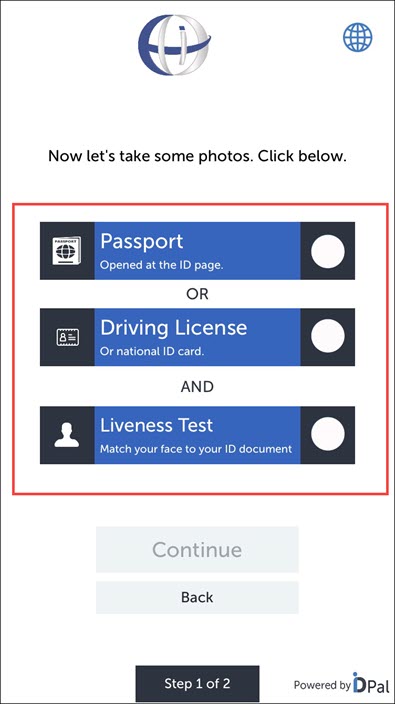
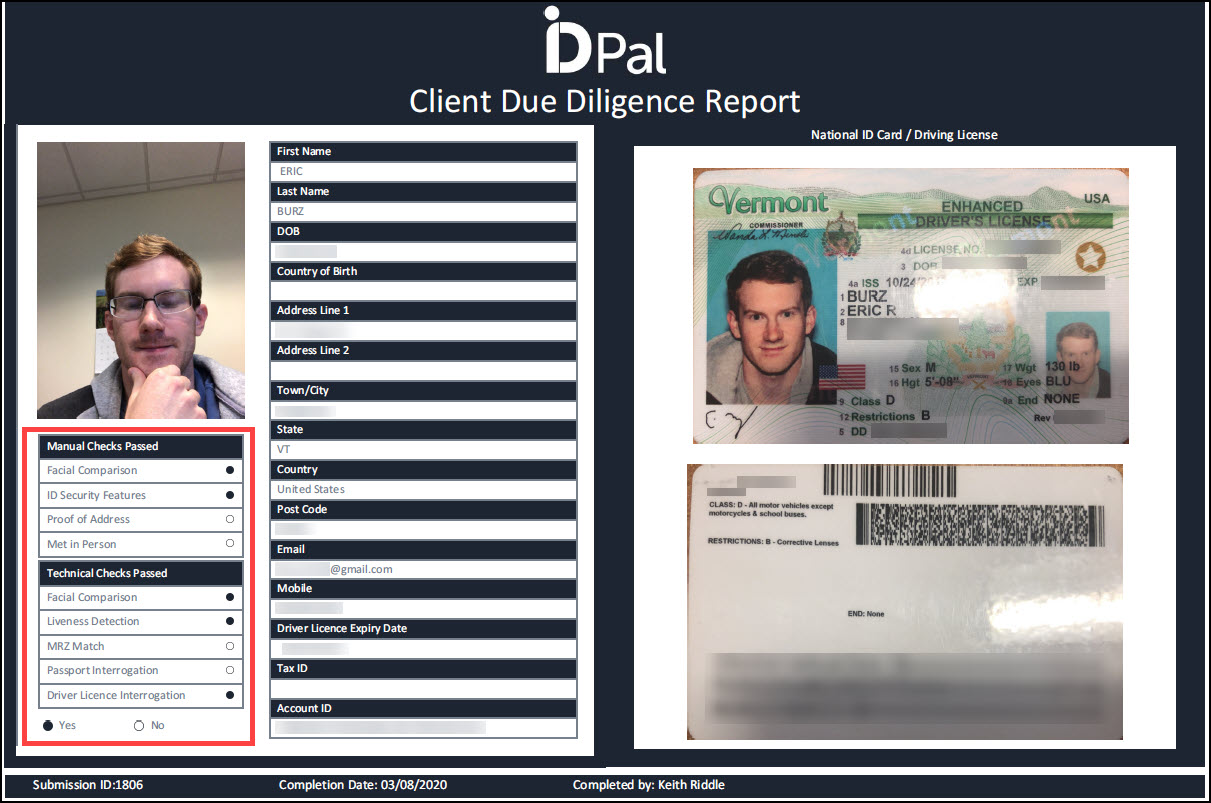
When IDPal confirms the signer's identity using the personal information and photos, they proceed to complete the signing process. A copy of the signer's Client Due Diligence Report is included with the completed package.
- If an authentication code is required, the signer is asked to enter that code on the next screen.
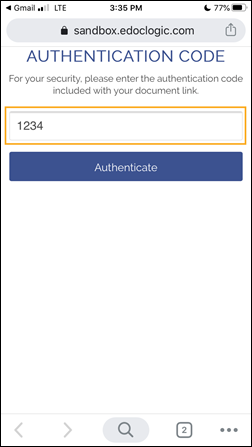
View Authentication Code DescriptionView Authentication Code Description
An authentication code is a security tool that can be used to help verify the identity of a signer. When an authorization code is entered for a signer, an email is sent to that signer containing the authorization code. During the document signing process, the signer is prompted for this code and must enter it before proceeding any further. Authentication codes can be a combination of up to six letter and numbers.
- Once all identity confirmation items are complete, the signer is brought to the View or Sign Your Documents screen. Signing documents are marked with a pen and paper icon
 . Reference documents are marked with a paper icon
  . The signer can click on any document name to review that document before the signing process begins.
Alternatively, the signer can click View & Sign All to review all included documents before the signing process begins.
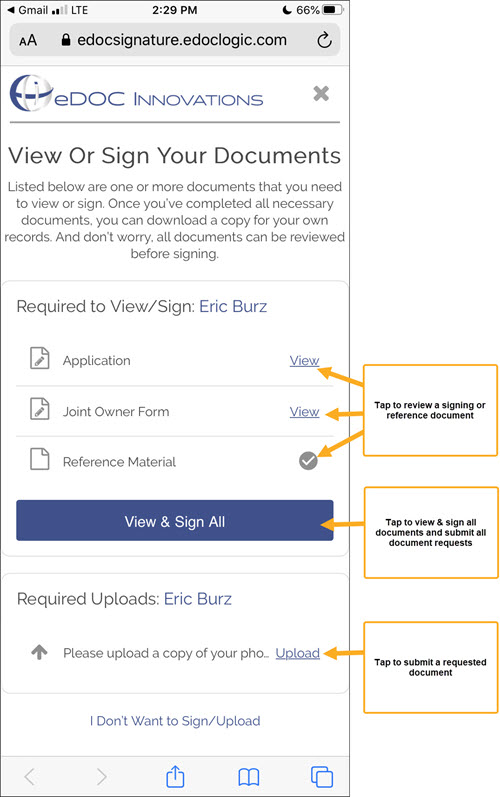
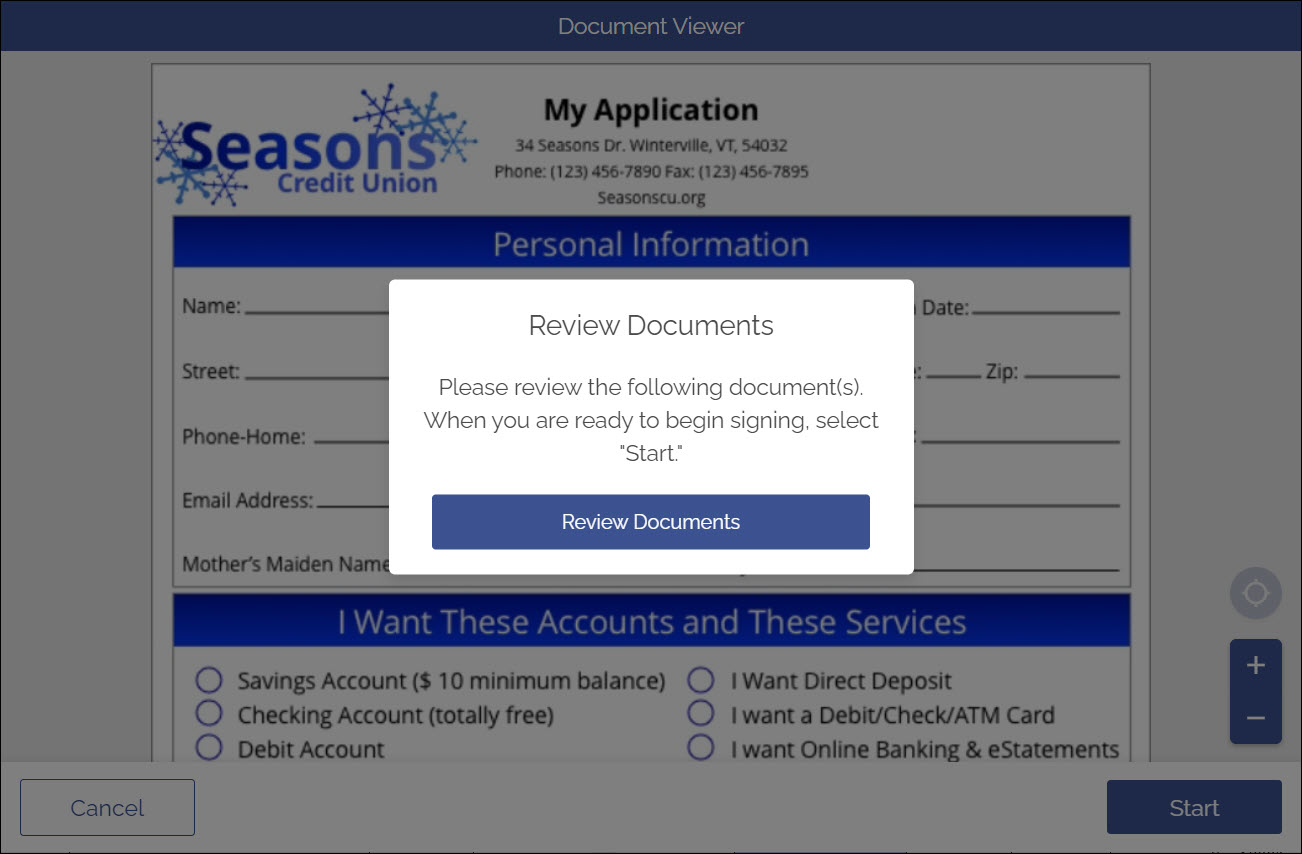
If the signer clicks I Don't Want to Sign/Upload, they are informed that any documents already signed will still be submitted to the credit union, and the credit union may still contact the signer to complete the signing process. - The signer clicks Review Documents to review the document before the signing process begins.
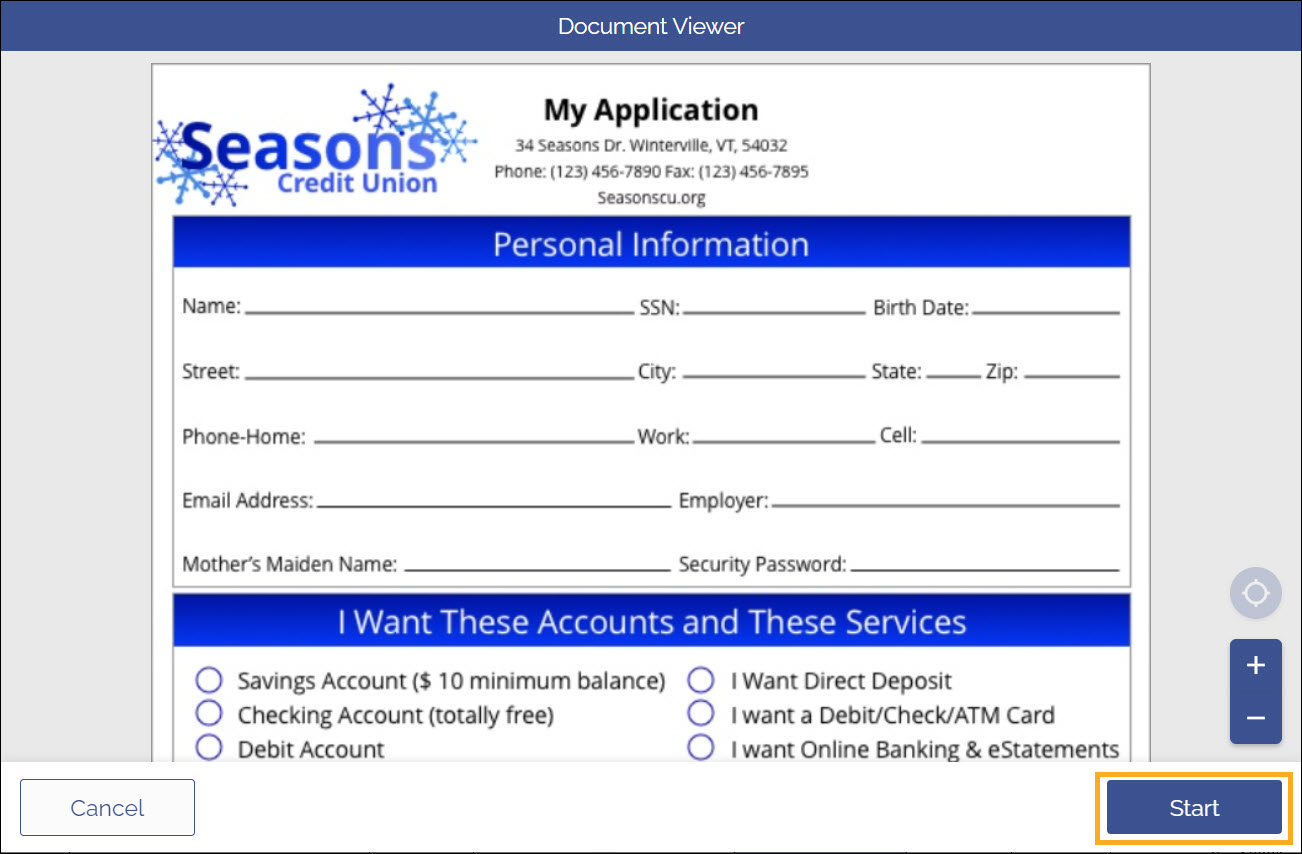
- The signer clicks Start to begin the signing process.
- After clicking Start, the Consumer Disclosure screen appears. The signer taps Agree to Terms to accept the disclosure agreement.
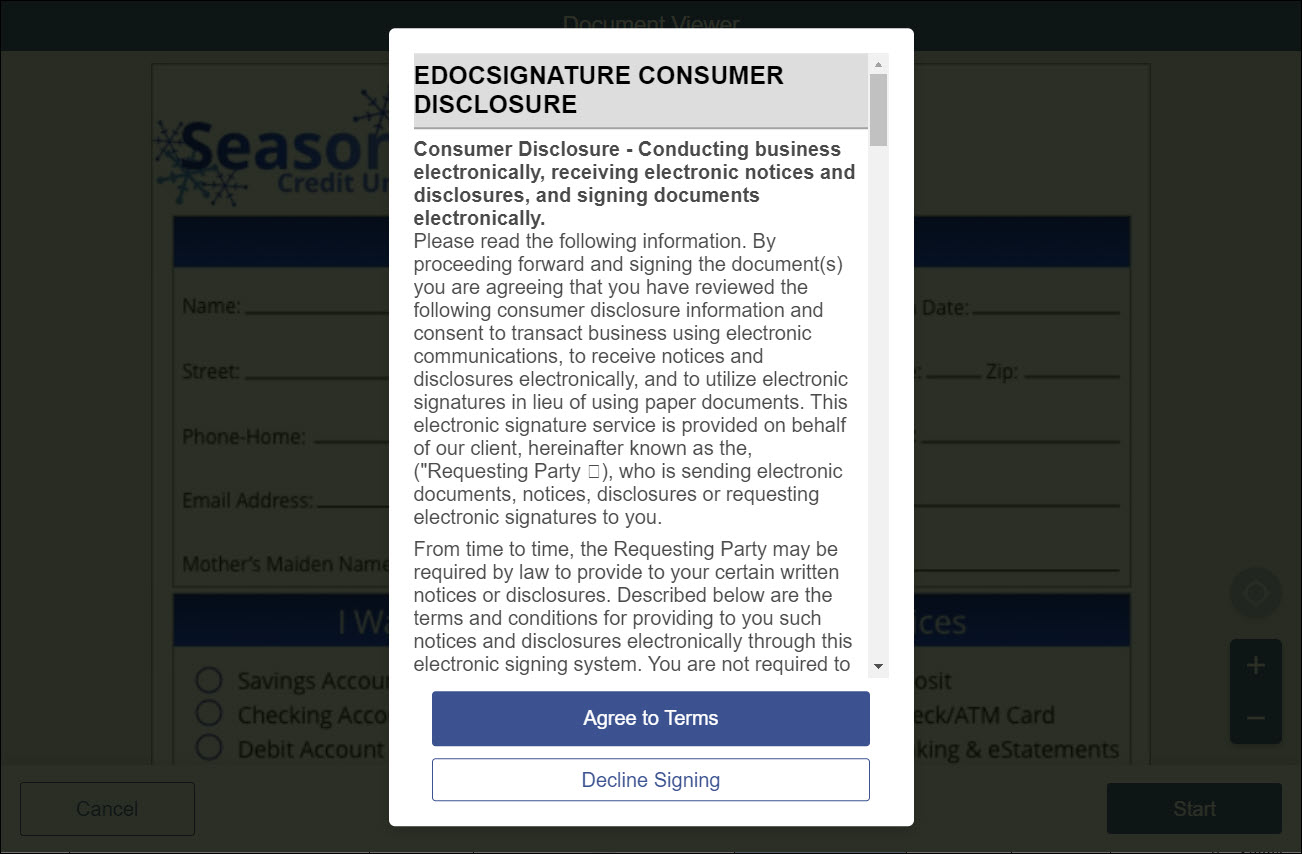
Note: Your insitution can choose to force-show the consumer disclosure each time a signer begins a new package, or only have it appear the first time a signer completes a package. For more information, contact the eDOC Client Development team.
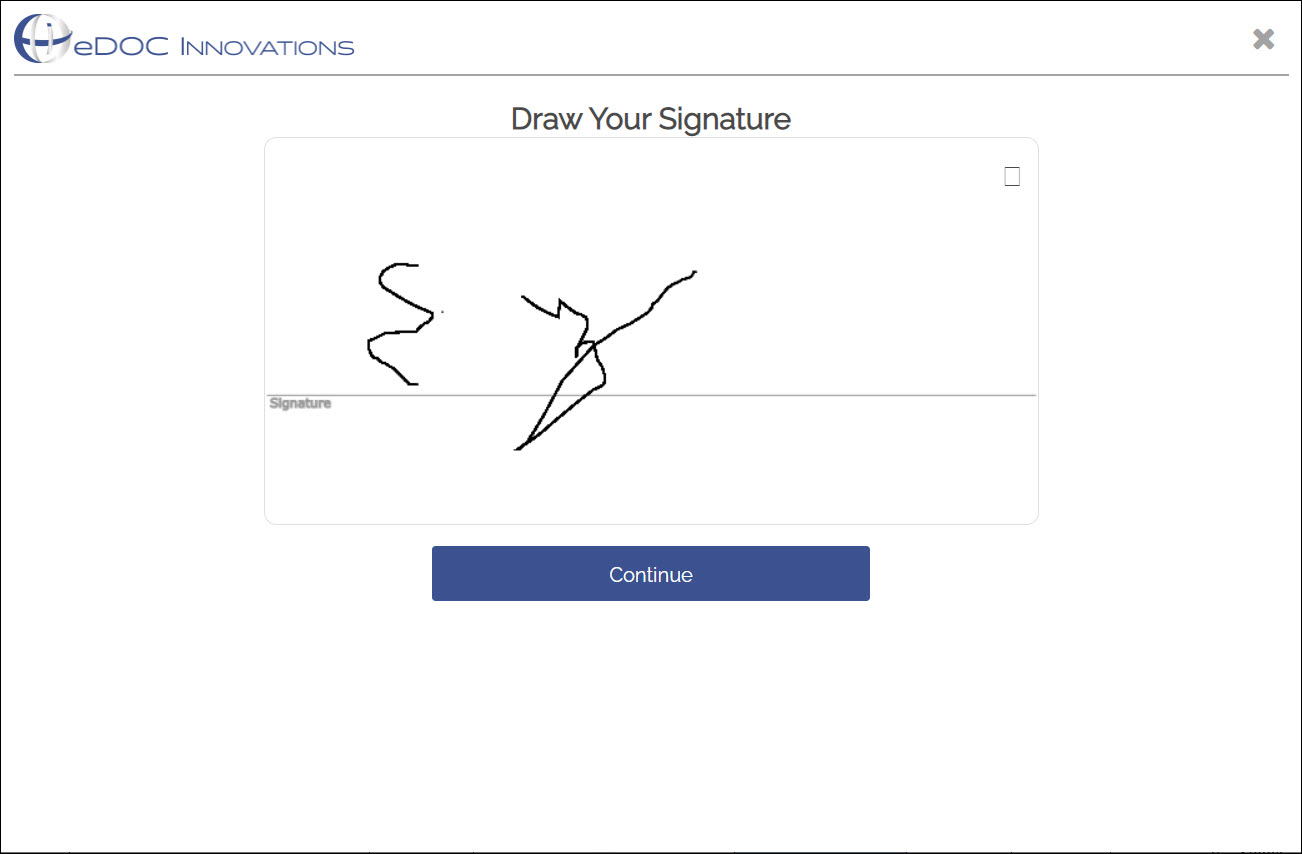
- The Adopt Your Signature screen appears. The signer has the option of typing their name and initials and selecting a signature font. Alternatively, the signer can draw their own signature by tapping Draw Signature Instead. When the signature is ready, the signer taps Adopt and Sign to begin signing.
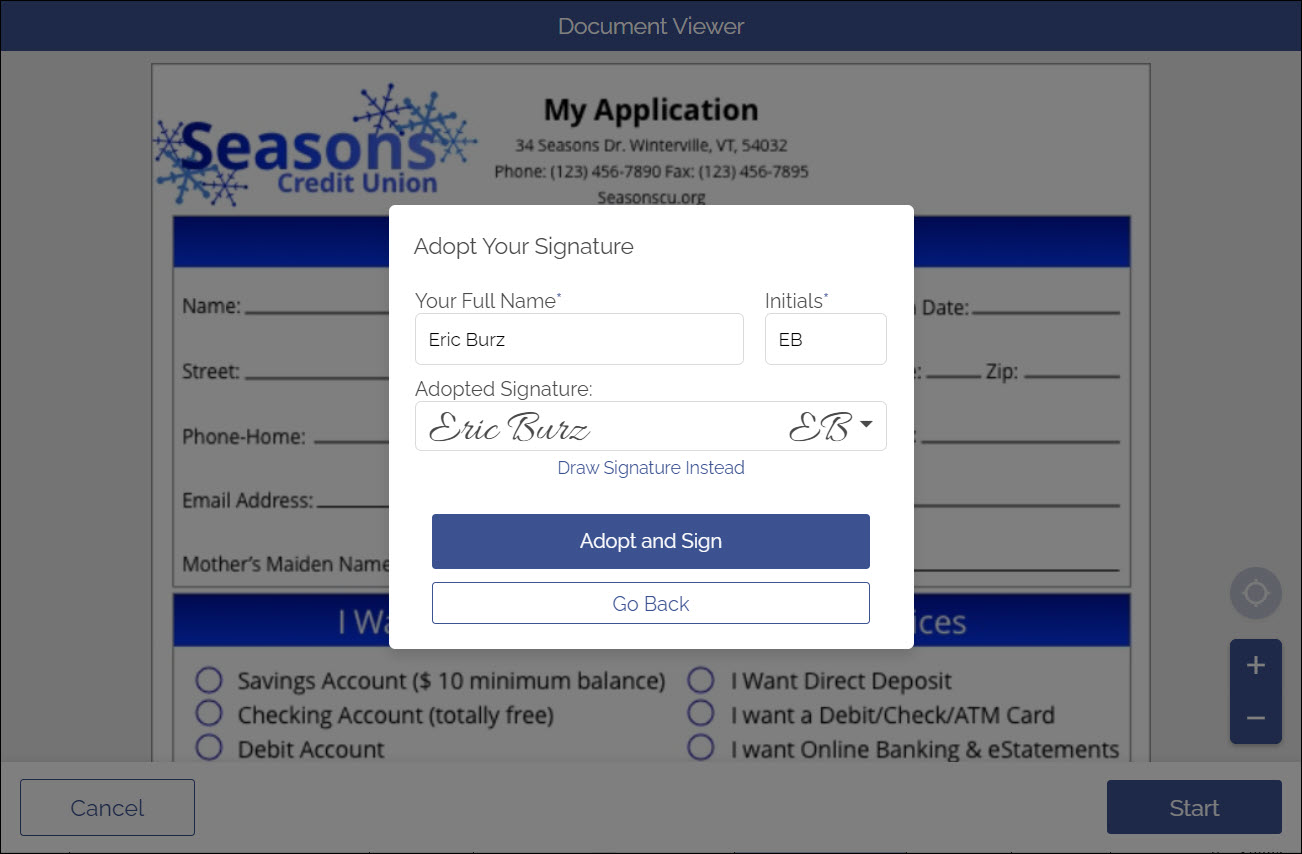
Note: If the Forced Signer Name option was seleced by the package creator, the signer can select a font, but won't be able to type their name.
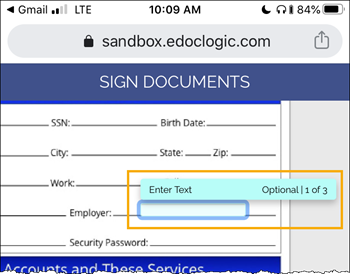
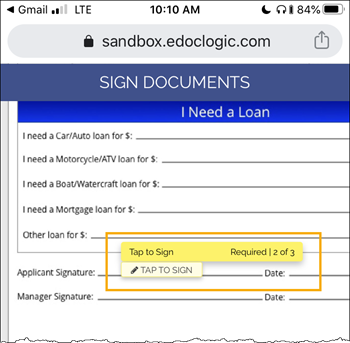
- The document opens and displays the first signing element. Optional signing elements are presented in a blue box labeled Optional. Required signing elements are presented in a yellow box labeled Required.
| Optional Signing Elements |
Required Signing Elements
|
 |
 |
For auto-filled signing elements such as signature, date, and initials, the signer is automatically advanced to each signing element as the previous element is completed.
For all other signing elements that need information filled in, the signer can tap Skip or Next to move on to the next signing element.
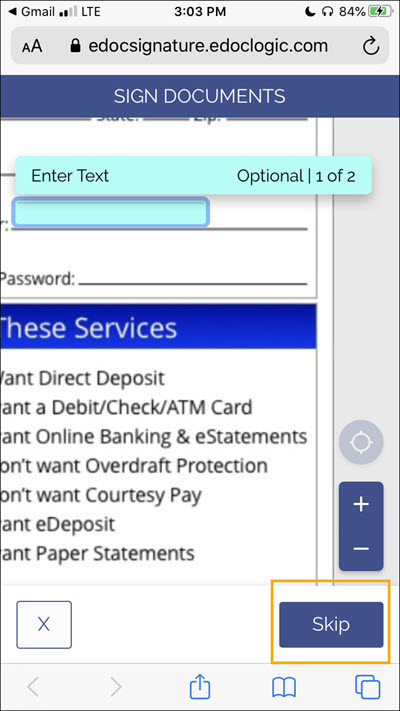
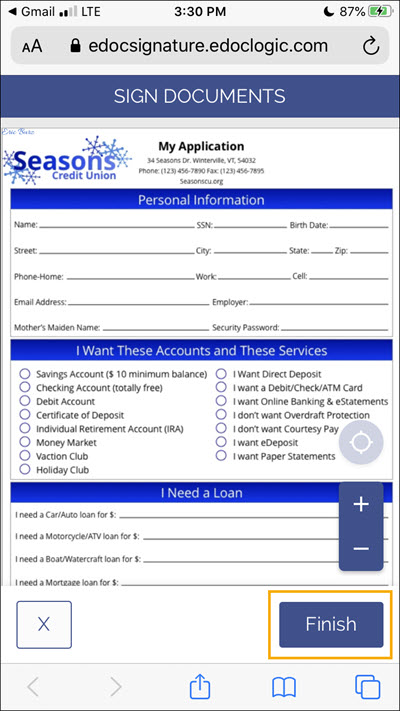
- When all signing elements are complete, the Finish button appears. The signer clicks Finish to finish the signing process.
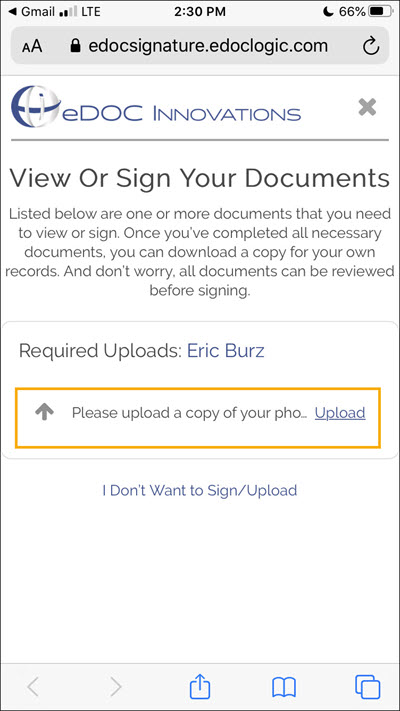
- If any documents have been requested from the signer, the Required Uploads screen appears. The signer taps Upload and chooses the appropriate file to upload.
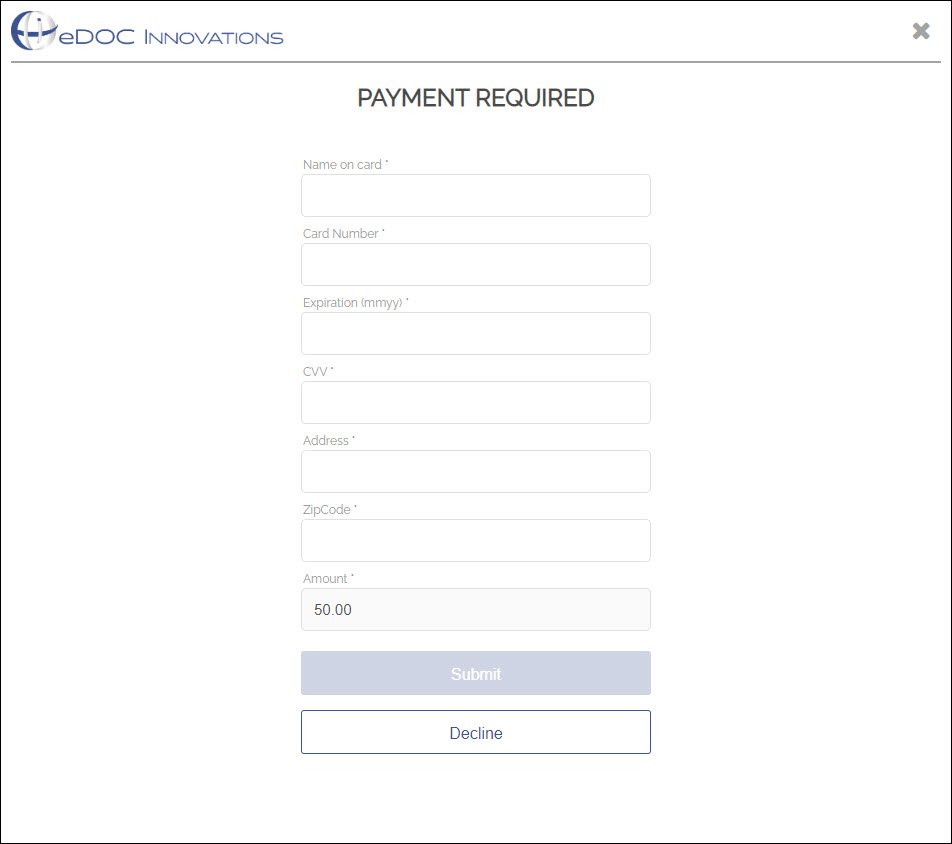
- If a payment has been requested from the signer, the Payment Required screen appears. The signer enters their payment information and taps Submit to complete the payment.
- Once all requested documents have been uploaded, the document signing process is complete. The signer can download a .pdf copy of any/all signed or requested documents before exiting eDOCSignature. They can also downloaded these documents for the next 90 days using the link provided to them in the final "package complete" email notification.